
Convert XML messages to HL7
What this tutorial builds
This tutorial creates an Integration Host workflow that watches a folder for XML files, reads the XML as a structured message, maps patient fields into an HL7 ORU message template, loops over repeated result nodes, and writes a new HL7 file for each XML message that arrives.
XML and HL7 can look similar because both can represent hierarchical clinical data, but there is no automatic conversion that knows which XML value belongs in which HL7 field. The useful work is the mapping: patient identity values go into PID, message metadata goes into MSH, and repeated XML results become repeated OBX segments.
Before you start
- HL7 Soup and Integration Host installed.
- The sample XML and HL7 messages, or your own XML source message and target HL7 sample.
- A folder for source XML files, such as
C:\XMLToHL7example, plus an output folder inside it. - Basic comfort with HL7 segments. If HL7 is new to you, start with Introduction to the HL7 Soup Editor.
Sample source and target
The sample XML has patient fields and a repeated set of results. The repeated result list is the part that makes this more than a simple one-to-one field mapping.
<Patient>
  <ID>1000</ID>
  <FirstName>John</FirstName>
  <LastName>Smith</LastName>
  <DOB>1980-03-22</DOB>
  <Results>
    <Result>
      <Device>MED1</Device>
      <Observation>Count</Observation>
      <Value>10</Value>
    </Result>
  </Results>
</Patient>
The target HL7 message is an ORU-style result message. Patient values are mapped into PID, and each XML result becomes a generated OBX segment.
MSH|^~\&|HL7Soup|Instance1|HL7Soup|Instance2|...||ORU^R01|...|P|2.5.1
PID|||1000||Smith^John||19800322
OBX||NM|MED1^Count||10
Step-by-step guide
- Create a new Integration Host workflow. From the Integration Host dashboard, right-click the workflow list and choose to create a new workflow.
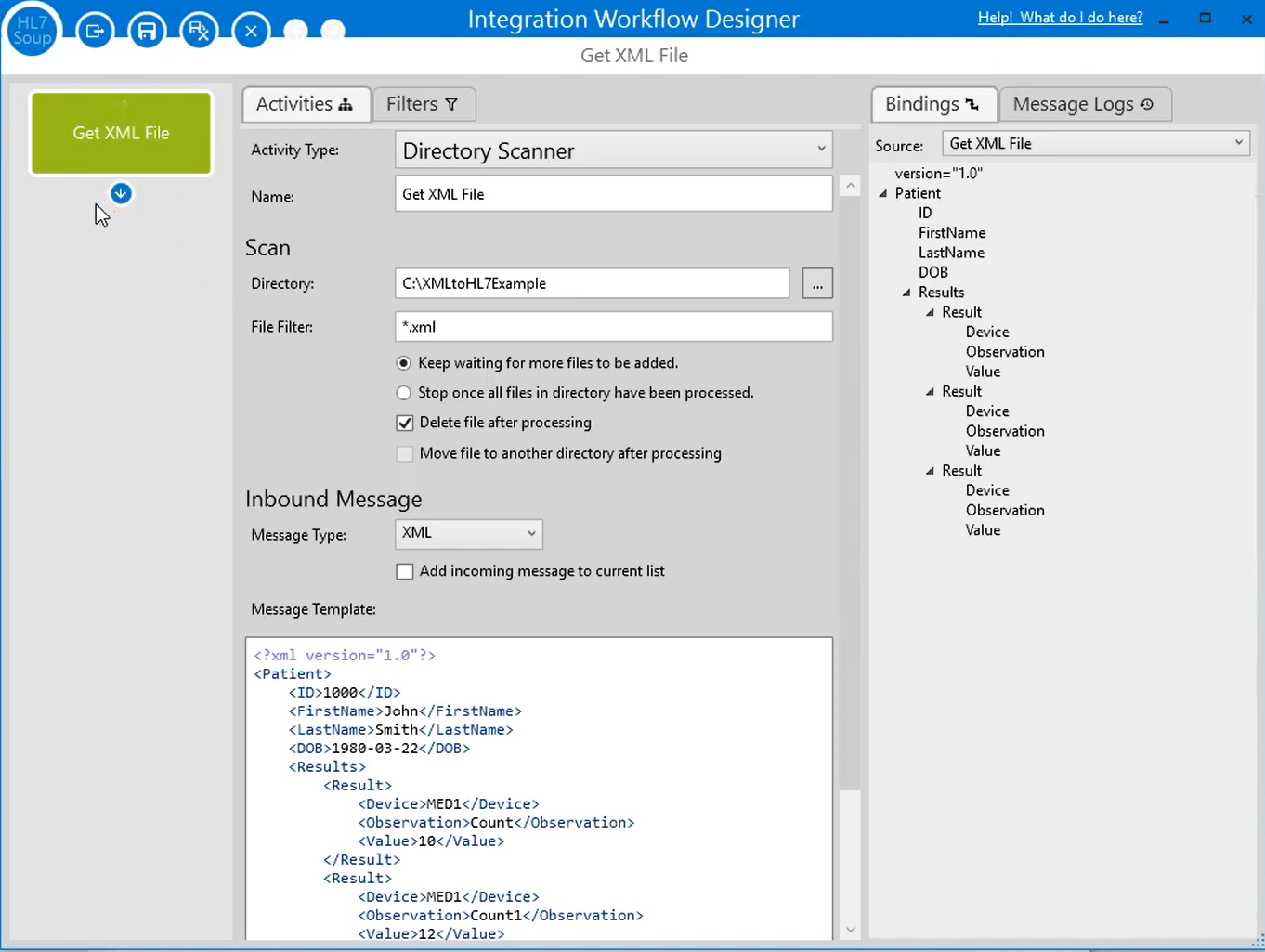
- Configure the XML receiver. Select a Directory Scanner receiver, name it
Get XML File, set the source directory, and use a file filter such as*.xml. - Keep the workflow running. Leave the scanner waiting for more files so the conversion can run continuously. Choose whether processed XML files should be deleted or moved after processing.
- Set the inbound message type to XML. Paste or load the sample XML message into the message template so Integration Host can show the XML tree in the bindings panel.
- Add an HL7 File Writer activity. Add a new activity that writes the converted message to a file. Use an output folder such as an
Outfolder below the source folder. - Make every output file unique. Insert the
WorkflowInstanceIDvariable into the file name and set the maximum records per file to1. That creates a separate HL7 file for every XML input message. - Load the HL7 message template. Use the supplied ORU sample, one of the HL7 Soup samples, or a real HL7 message from the system you need to send to.
- Map XML patient values into PID. Drag XML fields such as patient ID, first name, last name, and date of birth into the matching HL7 fields. Integration Host creates variable placeholders in the HL7 template.
- Insert workflow values into MSH. Use the current date/time variable for the message timestamp, format it as an HL7 date/time, and use
WorkflowInstanceIDfor the message control ID. - Remove one-to-one OBX sample rows. The sample HL7 message may already contain OBX segments. Remove the static rows that do not map one-to-one, because the workflow will generate an OBX row for each XML result.
- Add a For Each transformer for results. In the Transformers section, add a For Each transformer and point it at the repeated XML
Resultnode. - Create variables for each result value. Inside the loop, drag the result's device, observation, and value fields into transformer variables.
- Append an OBX segment for each loop item. Use an append-message transformer to add an OBX line, then insert the loop variables into the segment so each XML result becomes a separate OBX.
- Save, run, and test. Drop the sample XML file into the monitored folder, open the generated HL7 file from the output folder, and confirm the patient and repeated results arrived in the right places.
- Fix date formats and retest. If the patient birth date arrives as an XML-style date, format the binding as an HL7 date and run the same XML file through the workflow again.
- Use logs for debugging. Open the Integration Host message logs for each workflow instance to inspect the received XML, generated HL7, transformer values, and any errors.
Handling repeated XML results
A one-to-one conversion can be as simple as dragging source values into destination fields. Repeating values need one extra idea: the workflow must loop over each repeated XML result and append a new HL7 segment while it is inside that loop.
Use a For Each transformer for the repeated XML Result node, then append one OBX segment inside the loop. Any binding that references the current loop item will use the result currently being processed.
For the sample file, the XML contains three result nodes, so the generated HL7 should contain three OBX rows. That is the key check after the first successful test.
Useful checks and troubleshooting
- No HL7 file appears: confirm the Directory Scanner is running, the source folder path is correct, and the file filter matches the incoming XML file name.
- Files overwrite each other: include
WorkflowInstanceIDor another unique value in the file name and keep the maximum records per file at1. - Patient dates look wrong: right-click the date binding or variable and format it as the HL7 date or date/time expected by the destination system.
- Only one result appears: check that the OBX append step is inside the For Each loop and that the source paths reference the current XML result item.
- HL7 separators appear in mapped values: use Integration Host's encoding and escaping options when source data may contain HL7 structural characters.
- The destination wants a different HL7 layout: start from a real sample message from that destination system rather than guessing from a generic sample.
Related downloads and tutorials
- Download the XML to HL7 sample messages
- Integration Host Getting Started
- Integration Host Getting Started Part 2
- Mastering the Workflow Designer
- Convert HL7 Messages to XML
- Convert HL7 Messages to JSON
- Return to the HL7 tutorial directory
Download 30 Day Free Trial of HL7 Soup
Video Transcript
Read the full transcript
In this tutorial we're going to show you how to convert from XML to HL7. I have the sample files here: there is an XML file and the HL7 file that we're going to convert it into. I'll include a link to these if you want to download them and follow along.
Both files have a similar hierarchical structure, but they are not related formats. The bad news is that there is no automagical conversion between the two. We're going to need to map them together. I'm going to show you how to create an automated conversion so all you need to do is drop an XML file into a directory and it spits out an HL7 file.
This is going to be very easy because we're using HL7 Soup's Integration Host. You can follow along with the 30-day free trial, or if you're training, teaching, or just want to play, there is also a free development license available.
Here is Integration Host. This main screen is the dashboard used to monitor your conversions, but before we can monitor one, we first need to create a conversion. We just right-click on the left-hand panel and select New to load the Workflow Designer and define our conversion.
There is so much you can do with the Workflow Designer that goes well beyond the scope of this video. You can connect all sorts of medical hardware and software together: TCP, web services, databases, and all that sort of stuff. If you'd like to know more, take a look at our getting started tutorials. For now, we're just going to dive right in.
To begin with, I need to define how to receive my XML message. I'm going to select a Directory Scanner because I want to pick it up as a file, and I'll call it "Get XML file".
I already have a directory that I want to get the data from. It is C:\XMLToHL7example, so that is the directory to scan for our XML files. We're going to be looking for XML files, so I'll change the file filter to *.xml.
I'll leave the setting "keep waiting for more files to be added" on because we want this to be a permanently running process. In my case, I'm just going to delete the file once we're finished processing, but I could move it elsewhere if I wanted to.
Now we set the message type to be an XML message, and finally we include that XML message in the message template. You can see up on the right that it gets the structure from that message. That is very helpful when we're mapping the messages together.
Now that we've defined where we get the data from, we need to add another step into our workflow. I'm going to write it out as a file, and I'll name it appropriately. Now I just need to define how I'm going to name the file.
I'm going to use that same directory I used before, and I've got an Out directory inside that, so that's where I want it. In this example, I want to create a new HL7 file for every XML message that comes into the system, so I need to give it a file name.
I can insert a variable called WorkflowInstanceID into the file name. It's an ID that increments with each message, so it will make sure that each file has a unique file name. I therefore want to set the maximum records per file to 1, so it creates one message per file.
Now I add in my HL7 file as the message template. This is just a message I took from the HL7 Soup samples. There are a whole lot of different HL7 message types there if you want to base yours on those. Otherwise, if you can get your hands on the actual HL7 message you're going to create, that will be best.
If you don't know your way around HL7 messages, make sure you have a look at some of my other tutorials where we go through the basics of HL7 and load up the HL7 Soup editor. It's a great help for navigating these files.
If you look at the message, we've got our standard message header, patient information, and results information. Here is where we'll map in the XML values. As you can see, there is a little bit of patient information and we also have repeated result values.
We need to drag the appropriate fields from the XML message into the HL7 message. Let me show you how that is done. I'd like the patient to be dragged here, so I'm going to drag that field in from the structure created from the XML message. It automatically creates a variable placeholder in the message.
The idea is that we're creating locations inside the message that will be swapped out at runtime with the other values. The remaining message template will just be left there at runtime. For instance, the sending application and facility details are just going to be hard coded into the message template.
Let's bring in some more of these values, starting with the first name. Notice as I move the mouse over the message I can see exactly where in the message I am, so I know where to drop the binding. That's my first name, last name, and date of birth into the appropriate locations.
I don't have the gender for this one, so I'll remove that field. I'm also going to remove all of these OBX values because we don't have a one-to-one mapping here. We will need to generate an OBX value for each result instance, so for now I'm just going to remove all this additional stuff to simplify it for the demonstration.
What else needs to be done? We probably want to change the date/time in the message, so let's insert a variable. We'll insert the current date/time, and we're going to format that as well. Right-click and select Format Date. We're going to format it as an HL7 date, and I want to include the time up to the seconds.
For the message control ID, we're going to insert the WorkflowInstanceID variable. That's our incrementing value, so each message will have a unique ID. All the other stuff, such as the version number, is fine to keep.
That was super simple. If all you have is a conversion with one-to-one mapping, then that's all you need to do. You would be pretty much up and running.
However, in this example we have a repeating value, so I'll quickly go over the requirements for doing that. We have multiple results, so what we need to do is loop over those results and add in a new OBX value for each one of them. To do that, we need to go into the Transformers section of the activity.
Transformers represent the mappings from one system to the other. As we dropped the bindings into the message earlier, it was creating variables in the background that would be populated in the Transformers. Alternatively, we could have bound the fields by dragging the items from the source tree into the destination tree. Our getting started tutorial goes into that in a lot more detail.
We're going to loop over the results, so we want to add a new transformer step after this one. I right-click in the Transformers list and choose a For Each transformer. That allows us to loop over repeated items.
Now we need to configure what we want to loop over. We want all of these result values. All I need to do is drag the first value into there, and now we've said that we want to loop over every result in this message.
I'm going to take all the values out of each result and put them into variables so I can use those in the message. All I do is drag the value into the Transformers list, and it is created as a variable.
For each of those results, I am going to append a segment into my message. We want the source path to be the value of the OBX message. I can literally type in that segment now: OBX||. At this point, I can start inserting the variables that I've used. I'll put my device here, a couple more pipes, and insert the value and the observation.
You can see that we are creating variables for each of the result values and then appending an OBX value into the HL7 message for each one.
That's our workflow created. It has the nice name "Convert XML to HL7". I'll save and close this workflow.
If we take a look at Integration Host, we now have the workflow sitting there and it's in a running state, so let's give this a try. I'll go back to this directory, take my sample XML message, copy it, and place it into the directory that's being monitored. We see it gets deleted out afterwards.
If I now go to the Out directory, we can see our created HL7 message with its unique file name. If I double-click on that and take a look, sure enough, here is our generated HL7 message.
It's got the correct dates and details. The patient has been brought across. The patient's birth date is in the wrong format, but it at least has the value. We'll fix that in a second. Each of our results has gone in as we defined, so that was great.
I can now edit the workflow pattern by double-clicking, and we'll head back to where the birth date was written. This is a straightforward fix. I just need to right-click on the patient's date of birth, change the formatting for a date of birth, and we want it to be an HL7 date.
Here is a chance to rerun it. I can go back to my directory and paste in another file. You will see the new messages being created. Double-click, and great, the data is now in the correct format.
It is also worth noting the logs that have been generated for each instance. We can view inside those and look at the details of all the messages we created. If we have any debugging to do, this is a great place to do it.