
HL7 Escape Characters
What this tutorial explains
HL7 uses characters such as |, ^, ~, &, and \ to describe the structure of a message. Those same characters can also appear inside real data, such as an address, a name, or a free-text note. When that happens, the data character needs to be escaped so the receiver knows it is text, not message structure.
Start with an address like Corner of High & Main. If the ampersand is written directly into PID-11, it can split the address into subcomponents. The safe HL7 value is Corner of High \T\ Main, which keeps the ampersand as data while preserving the message structure.
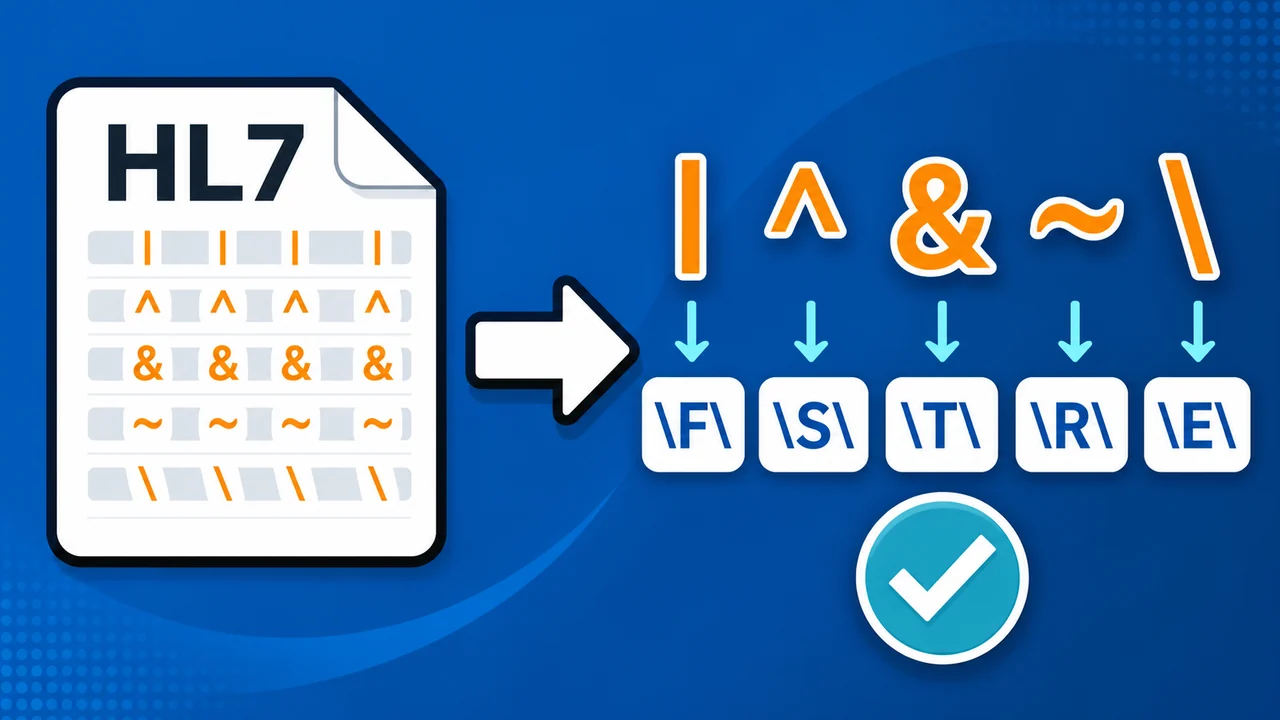
Why HL7 escape characters matter
The separators are usually defined at the start of the message. In a typical HL7 message, MSH-1 is the field separator, usually |, and MSH-2 defines the encoding characters, usually ^~\&. That gives HL7 a compact way to separate fields, components, repetitions, escape sequences, and subcomponents.
The downside is that those characters become dangerous when they are meant to be data. If an address contains a real ampersand and you write it directly into the message, the receiver can interpret it as a subcomponent separator. The address is no longer one address; it has been split into HL7 structure.
Source value: Corner of High & Main
Unsafe in HL7: Corner of High & Main
Safe in HL7: Corner of High \T\ Main
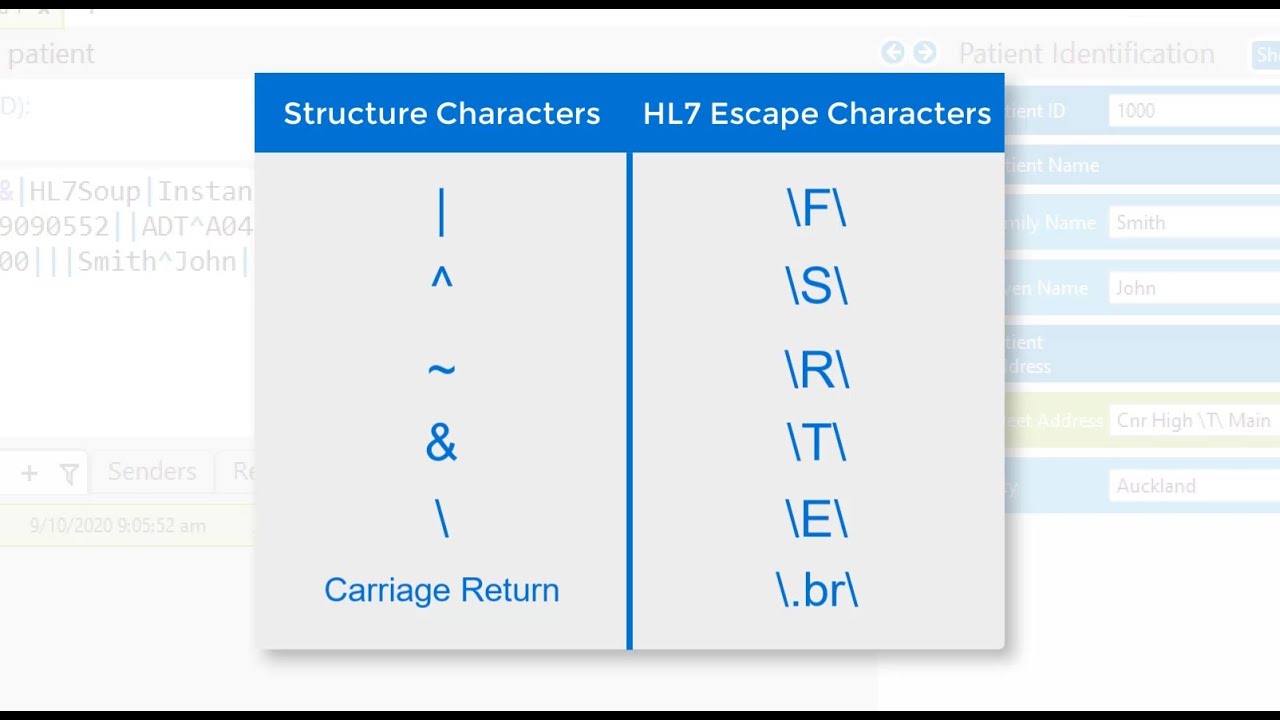
Common HL7 escape sequences
Use these escape sequences when the character belongs inside the field value rather than acting as a separator.
| Character | HL7 meaning | Escape sequence | Example use |
|---|---|---|---|
| |
Field separator | \F\ |
Use when a real pipe character belongs inside a value. |
^ |
Component separator | \S\ |
Use when a caret is text, not a component break. |
& |
Subcomponent separator | \T\ |
Use for values such as High \T\ Main. |
~ |
Repetition separator | \R\ |
Use when a tilde is part of the text rather than a repeat. |
\ |
Escape character | \E\ |
Use when a literal backslash belongs in the data. |
| Line break | Formatted text break | \.br\ |
Use for a carriage return or line break in formatted text. |
Step-by-step guide
- Start with the decoded source value. CSV data can safely contain a readable value such as
Corner of High & Main. Keep that source value as normal text while it is being read into Integration Host. - Create the outgoing HL7 activity. Add an HL7 send activity, point it at the TCP receiver, and use the HL7 message template you want to populate. In the sample workflow, the receiver is listening on port
22222. - Map the CSV headers into the HL7 template. Drag the generated bindings into the outgoing message for patient ID, first name, last name, date of birth, and address line 1. Integration Host places those bindings into the template as variables.
- Encode variables that are inserted into HL7 fields. Right-click the variable in the outgoing message template, choose Encoding, and select the standard HL7 encode option. That is the step that turns a data ampersand into
\T\. - Format typed values separately. Escape encoding protects reserved separator characters, but it does not turn a date into HL7 date format. Apply date formatting to the date of birth field as a separate formatting step.
- Use mapping transformers when possible. If you map from CSV, XML, JSON, HL7, or another supported message type into HL7 through a transformer, Integration Host decodes the source value and encodes the outgoing value for the target message type automatically.
- Test the outgoing message in the logs. Run the workflow, drop the sample CSV into the scanner directory, and check the outgoing HL7. The address should show
\T\where a raw ampersand would have corrupted the message structure.
Examples you can copy
| Plain text value | Safe HL7 value |
|---|---|
Corner of High & Main |
Corner of High \T\ Main |
Smith | Jones |
Smith \F\ Jones |
Alpha ^ Beta |
Alpha \S\ Beta |
One ~ Two |
One \R\ Two |
C:\Reports\Today |
C:\E\Reports\E\Today |
Line one |
Line one\.br\Line two |
What HL7 Soup and Integration Host do for you
- Reading values: when HL7 Soup extracts a value, it decodes HL7 escape placeholders back into the real characters so you can work with normal text.
- Mapping values: mapping transformers automatically handle source decoding and target encoding, so a CSV ampersand can become
\T\in HL7 without extra steps. - Writing variables: variables can intentionally affect message structure, so Integration Host does not assume they should always be encoded. Right-click the variable and choose HL7 encoding when the value is data.
- Converting between formats: moving from HL7 to XML, JSON, or CSV may require a different kind of escaping. For example, an HL7
\T\ampersand may need to become&in XML.
Useful checks and troubleshooting
- A field suddenly splits into components: look for an unescaped
^or&inside the data value. - A repeated field appears unexpectedly: check whether a real tilde should have been encoded as
\R\. - A literal backslash disappears or changes meaning: encode it as
\E\when it is part of the value. - Manual template variables behave differently from transformer mappings: remember that mappings are auto-encoded, while variables need the Encoding menu when they are data values.
- Different systems use different line-break conventions:
\.br\is the HL7 format shown here, but you may see other line break conventions in the wild.
Related tutorials
- Integration Host Getting Started
- Create HL7 messages from a database
- Write HL7 messages to a database
- Convert HL7 Messages to XML
Video Transcript
Read the full transcript
Hello and welcome to this tutorial on the HL7 escape characters.
To start with, let's take a look at an HL7 message with an escape character in it. Here we have a very simplified version of an HL7 message. It is a register patient message for John Smith, and he lives at the corner of High Street and Main.
As you can see in this HL7 message, instead of an ampersand between the words High Street and Main, there is a \T\. Why is this?
His address, "Corner of High Street & Main", would normally have an ampersand between the two street names. But inside HL7, ampersands are used to represent part of the message structure. On the right-hand panel, PID-11.1 represents the street address. If I alter the street address by placing an ampersand directly into it, you will note that the ampersand converts that value into two subcomponents representing different parts of the message.
Effectively, we have corrupted this HL7 message. Anyone reading the address would end up with just "Corner of High", while the ampersand and "Main" would be left out.
The purpose of escape characters is to replace those structural characters with temporary placeholders that represent the character they are supposed to be. Then, when the value is extracted out, the actual character can be put into its place. In this example, the ampersand should be replaced with \T\.
Let's take a look at all the HL7 escape characters. Here we see a list of the characters and what their placeholders look like in an HL7 message. A pipe has \F\, the caret has \S\, the tilde has \R\, the ampersand, which we have already looked at, has \T\, the backslash itself has \E\, and finally a carriage return is \.br\.
Although what I am showing is the official HL7 format, I have seen a lot of variation out there. Do not be surprised if you see angle brackets with br in them, or other syntax representing a carriage return.
If you are constructing an HL7 message, you are expected to convert any structural characters into their placeholders. If you are converting out of an HL7 message into a different format, you are expected to convert those placeholders back into their structural characters. In fact, if you are converting from one message type to another, say HL7 to XML, you might find that you have to convert one escape character to another. For example, \T\ in HL7 would need to be converted to & inside XML.
So how do we do this in a real-world scenario? Let's take a look at some sample CSV data. Here we have a simple list of patients. We have their ID, their name, their date of birth, and their address. Scanning through these, most of them are just random addresses, but the first one is our "Corner of High & Main". Pasting an ampersand into a CSV message is perfectly fine, so what is going to happen to that when we convert it to HL7?
I have put together a quick sample inside HL7 Soup's Integration Host. We will convert that CSV to an HL7 message. Let me start by editing the sample.
What do we have here? We have a directory scanner reading in files from this directory. It is looking for CSV files, and I have already populated the message template with the headers from our CSV file. Now we need to convert that to HL7 and send it off.
I will add another activity, and we are going to send that off to a common HL7 destination: a TCP receiver on port 22222. All the defaults are fine for our purposes, but we do need to provide it with a message template. So let's paste in the message we had before and use that as the template for our new message.
Inside Integration Host it is easy to map two different messages together, and I am going to show you a couple of ways of doing it. On the right-hand side, a bindings list has been generated from the headers we provided for the CSV. All I have to do is drag those into the HL7 message: the ID, the patient's first name, their last name, their date of birth, and finally address line 1.
Behind the scenes, HL7 Soup maps those values into variables and places those variables into position inside the message template. As values go out of the CSV into the variables, they are automatically decoded. It does not matter what the source of those messages is. The escape characters are removed by the time the values have gone into the variables. For instance, if the source was an XML file, any & would have been replaced with an ampersand in the variable's value. The variable is populated with the actual value.
Now, when we write it back out, we have to tell it to escape our variable values for HL7. I do that with a feature called encoding. I right-click the variable, go down to Encoding, and select the option to encode the message for HL7.
You will notice there are two HL7 encodings, along with encodings for XML, CSV, JSON, Base64, and URL creation. The encode-with-double-quotes option will also put double quotes in if a value is empty. I am going to discuss that in another video, so for now we will choose the standard HL7 encode. Now we expect that ampersand to be replaced with \T\.
Finally, I have the date of birth, and I am going to format that for HL7. That is our HL7 message created.
Let me quickly show you another way we can do this, and how to encode it. I add another activity, keep all the same settings, and put the message template back in again. This time I am going to map the two messages through transformers, so I click on the Transformers tab.
You can see it has rendered a list for both the incoming CSV data and the outgoing HL7 data. It is a bit tight on the screen because I have zoomed in for recording, but it is simply a matter of mapping between the two message types. I map the ID to the patient ID, expand out the patient's name and map the first name to given name, the last name to family name, the date of birth to date/time of birth, and address line 1 into PID-11.
Here we have created a mapping between the incoming values and the outgoing values using transformers. When you are using a mapping transformer, both the incoming message and the outgoing message are automatically encoded for you. No additional actions are required for me to get that encoding. That would be the same whether I was mapping from CSV, JSON, HL7, XML, or other formats. It is very simple and straightforward.
I am going to save this and test it out. We can see our workflow is running, and our receiver on port 22222 is ready and waiting. I head over to the file system and drag my sample CSV into the processing directory. We can see our ten messages have been processed. Let's take a look at the logs and see what happened.
I expand the first one, and we can see the first line of that CSV is being picked up with the ampersand in the address. If we go to the first send, the ampersand has been replaced with \T\. In the second one, the address has also been replaced with \T\.
I had missed setting the date to the right format, but that is okay. All I have to do is right-click on the source path and select the format for the date to the HL7 date format.
So, quickly to reiterate: HL7 escape characters are there to prevent corruption of your messages. Inside HL7 Soup, every time you extract a value, the escape characters are removed for you. Inside HL7 Soup's tools, when you read in the values, it automatically swaps the placeholders with the proper characters. When you write them back out, anything using the mapping transformer automatically adds the escape characters for the appropriate message type.
If you write the value out as a variable, you have to right-click and add that escape encoding yourself. The reason is that variables are allowed to update message structure, where mappings cannot.
I hope this video has helped you. If it has, please consider giving us a like or subscribing to our channel. We have lots of HL7 videos coming out all the time. Do not forget to take a look at the getting started tutorials for Integration Host, visit our tutorials page, and feel free to ask us any questions you might have or contact HL7 Soup support.