
Send HL7 results to CalREDIE ELR
What this tutorial builds
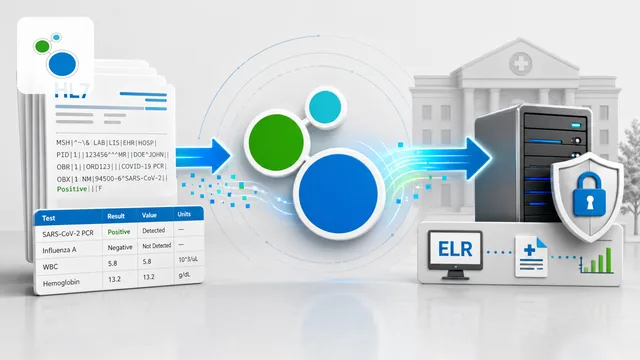
This tutorial walks through the shape of a CalREDIE ELR submission workflow. Start with the result data your system already produces, map it into the HL7 structure CalREDIE expects, and then send that HL7 message through the CalREDIE SOAP web service from Integration Host.
The example keeps the input deliberately small by using CSV, but the same pattern applies when the source data is XML, JSON, or an existing HL7 message. The key work is the same: map your values into the required CalREDIE HL7 fields, configure the certificate-backed web service connection, XML-encode the outbound HL7 payload, and use the validator report to close any missing-field gaps.
Before you start
- HL7 Soup and Integration Host installed, with a license that lets you build and run workflows.
- CalREDIE ELR onboarding information for your organization, including the message structure, test or production credentials, WSDL endpoint, and validator instructions.
- The CalREDIE client certificate and certificate password supplied during onboarding.
- Representative source result data from your system, such as CSV, XML, JSON, or an existing HL7 message.
- A CalREDIE sample HL7 message to use as the template for the outbound result message.
- A test folder where Integration Host can pick up source files, write generated HL7 files, and move or delete processed files.
Step-by-step guide
- Review the CalREDIE ELR onboarding material. CalREDIE supplies the connection details, required HL7 structure, validator guidance, credentials, and certificate details. Keep those documents beside you while building the workflow, because the tutorial only maps a few example fields.
- Create a sample source folder. Put a small test CSV, XML, JSON, or HL7 file in a folder that represents the data your system produces. The tutorial uses CSV because it is easy to see the source values, but the mapping idea is the same for the other formats.
- Open the CalREDIE sample HL7 message in HL7 Soup. Use a sample from the CalREDIE documentation rather than inventing the outbound structure. CalREDIE ELR messages contain many required fields, so the sample is the safest starting point.
- Create the conversion workflow. In Integration Host, create a new workflow with a Directory Scanner. Point it at the incoming source folder, choose the right message type, and paste a representative message into the message template. For CSV, add headers so Integration Host can expose the fields in the binding tree.
- Add a File Writer for the generated HL7. Add a File Writer, choose one record per file when the source file has multiple records, and write the generated HL7 messages into a separate processed or outbound folder.
- Use the CalREDIE HL7 sample as the message template. Paste the CalREDIE HL7 message into the File Writer message template. Keep literal values in place where they are the same for every message, then replace the changing fields with bindings from the incoming source data.
- Map the source values into the HL7 template. Bind practical starter fields such as patient ID, given name, family name, and date of birth. The real workflow will need many more mappings, but a few fields are enough to prove the source-to-HL7 path works.
- Format dates and encoded values before validating. If HL7 Soup reports invalid dates or CalREDIE rejects the message, format the source dates into the required HL7 format. Also check characters that need to be escaped before they are placed into HL7 or XML.
- Test the conversion workflow locally. Drop a source file into the scanner folder, let Integration Host create the HL7 output files, and open the generated messages in HL7 Soup. This catches mapping and formatting problems before you send anything to the web service.
- Create a second workflow for CalREDIE submission. Add another Directory Scanner that picks up the generated HL7 files. Use a sample incoming HL7 message as the template and delete or move the file after it has been processed.
- Add a Web Service Sender. Add the Web Service Sender activity and paste the CalREDIE WSDL address. The first connection attempt may fail until the client certificate is installed and referenced correctly.
- Install the client certificate. Import the CalREDIE client certificate into the local machine Personal certificate store. Then open the certificate details, copy the thumbprint, remove spaces, and paste the thumbprint into the Web Service Sender client certificate setting.
- Select the submit operation and fill in the fields. After the WSDL connects, choose the submit message operation. Fill in the user ID, password, data owner ID, program ID, environment, and action values according to your CalREDIE onboarding details.
- Bind the HL7 message into the SOAP request. In the message content field, right-click and insert the activity message from the Directory Scanner. Then set the binding encoding to XML so characters such as ampersands are escaped safely inside the SOAP payload.
- Send test messages and inspect the logs. Save the workflow, process a test HL7 file, and open the Integration Host logs. A credential error still proves the request reached the service; a production-ready run needs valid credentials and a valid CalREDIE HL7 message.
- Validate and correct the outbound HL7. Use the CalREDIE validator to paste a sample outbound HL7 message, download the report, and fix missing required fields or invalid characters by adding mappings, literal values, or formatting rules in the workflow.
Certificate and SOAP request notes
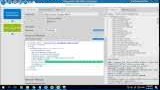
The CalREDIE web service connection uses a client certificate. Install it into the certificate store available to the machine and account running Integration Host, then copy the thumbprint without spaces into the Web Service Sender. If the certificate is not found, the WSDL connection and submit operation will fail before the message can be tested.
When the HL7 message is inserted into the SOAP request, XML-encode the bound activity message. That keeps characters such as & from breaking the SOAP XML while preserving the HL7 content CalREDIE needs to receive.
Useful checks and troubleshooting
- WSDL connection fails: confirm the CalREDIE endpoint is reachable from the machine running Integration Host and that the client certificate is installed in the right certificate store.
- Certificate is installed but still not used: copy the certificate thumbprint from the Details tab and remove spaces before pasting it into the client certificate setting.
- Service responds with invalid credentials: the message reached the service, but the user ID, password, data owner ID, environment, or onboarding credentials need to be corrected.
- Generated HL7 does not validate: use the CalREDIE validator report to identify missing required fields, then add the missing mappings or literal values to the HL7 template.
- Date or identifier fields fail validation: format source dates into the expected HL7 date format and check that coded fields use the values CalREDIE expects.
- SOAP XML breaks on special characters: XML-encode the inserted HL7 activity message or wrap it safely according to the requirements in your implementation.
Helpful CalREDIE links
- CalREDIE laboratory reporting information from CDPH
- CalREDIE staging web validator
- CalREDIE SOAP web service WSDL
- Download HL7 Soup and Integration Host
Related tutorials
- Integration Host Getting Started
- Integration Host Getting Started Part Two
- Create HL7 messages from database records
- Convert CSV to HL7 messages
- HL7 escape characters
- Return to the tutorial directory
Download 30 Day Free Trial of HL7 Soup
Video Transcript
Read the full transcript
Hello and welcome to this tutorial on the CalREDIE electronic lab reporting system, and how to get data sent through to it. We have had a number of people come to us looking for advice on how to make this connection, so we thought we would create a quick video giving you an introduction to what is required.
CalREDIE has a pretty good website. There are details about how to enroll to get the connection. Basically, you enroll with them, they send you information on how to make the connection, including some message structure and validation details, and then you have to map your data into their HL7 message and send that through. It is a SOAP web service, so you send that through to them for processing.
We are just going to dummy it up and give you an introduction on how to do that. I have a samples directory for CalREDIE, and inside here I have a very basic indication of the data that your system produces. It is obviously not real, and it is very limited. Yours will have a lot more information. You might have it in another format as well. It could already be a type of HL7, it could be XML, it could be JSON. I am sticking to a basic CSV, but the idea is the same for each of those.
We have also got a sample CalREDIE message, and I am just going to open that up inside HL7 Soup. This is one I took from their documentation. It is not real data; it is just enough to muck around with. As you can see, there is a lot of complexity in the HL7 messages they have. There is a lot of data that actually goes through in each of them. I am not going to show you how to map every field, but I will give you an indication of how to map some of them through.
We will start by loading up Integration Host. I have already installed Integration Host, and I have the development license in place, so I can now create a new workflow. First we are going to convert our CSV file to HL7. We are going to scan for that file, so I am going to add a Directory Scanner. I will search for anything that turns up in that CalREDIE directory, and we will be looking for CSV files.
I will change the message type to CSV, and then we put in a sample of that data. This one happens to be a comma-separated file. For CSV, it is easier to put in some headers to fill in the places. If you had XML or JSON, you would paste the full message that you have into this message template. Finally, after it is processed, we are just going to delete that file.
As the second step, we are going to add a File Writer. We are going to write it back into the CalREDIE folder as an HL7 file. We will change it to one record per file, and we will move the source file to another directory after we have processed it. We will stick with CalREDIE, but call the processed folder "processed", and put our HL7 output there.
Now we want to grab the CalREDIE HL7 message and place it in as the message template, because this is effectively the message we want to write into that directory. Many of these fields are going to stay the same. Many of them are literal values. You can go into your sample value and put in whatever values suit. A literal field can go into this position. You can put all the literal values that do not change per message into the template.
Now we have to map the incoming values into this message. To do that, I will go into the transformers. You can see it has worked out from the headers that I gave it all the fields coming in. This is a tree representing the outbound message, so now I can just map the bits together. I will map the patient ID coming in to the patient ID in the HL7. I can drag that across and it creates a binding between the two.
I can do the same with the patient's name. Bring the first name across to the given name, the last name across to the family name, and I will also map the date of birth across. You are going to want to do all sorts of formatting to this as well. I have other videos on doing that. Have a look at the getting started tutorials at the top; they give you a good introduction to getting the formatting right for an HL7 message. I am just going to stick with the basics here, save and close this workflow, and give it a try.
I go back to my sample directory, take that temp file, copy it back up, and paste it into the incoming folder. Notice it has now created the processed directory I specified, and it has created twelve messages with unique file names, each representing one of the twelve items inside that CSV file.
If I take those and drag them over into HL7 Soup, we can merge those files in and see all the messages. There is a validation error because I did not convert the date. They were in a different date format. Again, look at the other videos for the details on how to do that. But as a general rule, you can see what we have done: we have created an HL7 file where our literal values are in each record, and the values from our system have been mapped into those fields.
Now we are going to create another step to this process. We are going to read those values in and send them through to CalREDIE. To do that, I am going to create a new workflow. Again, I am going to use a Directory Scanner. I want to pick up the processed CalREDIE directory, and I am going to pick up all the HL7 files from there.
I want to add in a message template again. I will use one of the sample HL7 messages. It is just a sample of what is coming in, and it does not matter too much at that point. Once it has processed the file, we will set it to delete after processing.
The next step is to send it through to the web server, so I click on a Web Service Sender. We just need to get the location of it. Here is their WSDL address. I have that ready for me to get to, so I am going to paste it in here and try to connect.
This is going to fail, and the reason it is going to fail is because we do not have the certificate installed. When you sign up, they will give you a security certificate. Here is mine, so I need to install that onto my computer. I double-click it, choose to put it into my local machine, and the path is good. I do need to know a password for it, so I put that in. Then I choose where to put it. I browse to my Personal certificate store, click OK, and finish. It has now been imported into my system.
There is one more detail I need to do. I need to get the certificate's thumbprint. If I type in MMC or manage computer certificates, then go to Personal Certificates and open my certificate, I can go to Details and get the thumbprint of that certificate.
I can now take that thumbprint back to Integration Host and go to Show More Connection Settings. For the client certificate, I paste the thumbprint in here. If you happen to have a lot of spaces in yours, get rid of the spaces as you paste it in.
Now I can hit Connect. It has gone to CalREDIE and successfully connected to that data, and it has brought back the list of operations that are available to me. There is a connectivity test and there is a submit message, so I am going to choose Submit Message.
I scroll down and see that it has pre-populated all the fields that need filling out for me. You do need to pass in a user ID, a password, the data owner ID, the program ID, the environment, and the action. If you are sending on behalf of someone, you can use their data owner ID, but in this case I am sending on behalf of myself, so it is the same as my user ID. The program ID identifies which program you are sending to. In the tutorial example, CalREDIE ELR is one, CAIR is two, and CCR is three. The environment is production or test, P for production and T for test. The action I am going to do is send, and you could also put in query if that was appropriate.
Finally, for the message content, we have to put that HL7 message into here. To do that, I am going to bind in the value that this Directory Scanner picks up. All I have to do is right-click in the right place, choose Insert Activity Message, and choose the Directory Scanner activity. Now that inbound message is going to be resent as the content.
I could put that inside CDATA to make sure it is not reading across any fields that are not allowed inside XML. But what I can also do is right-click on it, choose Encoding, and set it to XML encode. It changes the color to green. Now any bit of text in there that would make this XML message invalid, such as an ampersand in the wrong place, will be escaped. An ampersand becomes &, keeping the message valid.
That is all that needs to be done. If I hit Save and Close, this starts processing. Back in Integration Host, you can see it has already processed twelve messages. I could have made the name a bit better, so I will prepend that just to make it easier to identify the difference between the two workflows.
Here we can see the logs of what actually happened. If I click on that, it has taken those messages, picked up the HL7, and the second step has sent it through. Here is the response we got back. Of course, it is giving us an invalid username and password, but we have successfully sent the message. If we put in the right username and password and created a valid HL7 message, then that would work once the username and password issue was sorted.
There is probably one other thing you really have to keep in mind: CalREDIE has a lot of fields inside the HL7 message that are required to be provided. You have to make sure that the message this workflow sends out has a decent message structure.
What you can do is take one of your messages and use the validator tool on their website. Fill out your details, paste in your message, and hit Validate. Once that comes back, download the results and open the report. The validation tool will tell you what fields were not found. In this example, there were a few required fields I did not have, and a few missing valid characters for them. They give you a pretty detailed report.
Each of those issues has to be corrected inside the workflow. You would provide either a mapping with a transformer or a literal value in the right location.
I realize there is a lot to take in there. You are welcome to contact HL7 Soup support if you need help connecting to CalREDIE, and we can help you get your integration working. Do not forget to take a look at some of our other videos that show you how to convert from different message formats into HL7. You will need to get the data types right and escape characters correctly. If this video has helped you, please give us a like. It really does help us, and consider subscribing to our channel. Thank you.