
Validate NHS ITK HL7 messages with HL7 Soup
What this tutorial shows
HL7 is flexible, which is useful until two systems make different assumptions about the same field. In this tutorial we use the NHS Interoperability Toolkit, or ITK, as the example custom schema set for HL7 Soup. Once the ITK schema files are loaded, HL7 Soup can describe UK-specific fields, show the relevant table values, flag invalid dates, and help you build a reusable validation set.
The same technique also works for other country, supplier, or organisation schemas. The important pattern is simple: put the schema files where HL7 Soup can read them, restart the editor, load representative messages, and then turn the validation checks into a repeatable highlight set.
The video shows an older HSCIC web address. For current NHS guidance, use the NHS England Digital Interoperability Toolkit page and the ITK2 Messaging API standards page. NHS England Digital currently marks the ITK2 Messaging API standards as deprecated, so check your project requirements before starting new development.
Before you start
- HL7 Soup installed on the machine where you want to test the schemas.
- The NHS ITK HL7 v2 schema pack, or the local HL7V2 DMS V1.1 Final schema download.
- Access to your user profile folder so you can copy files into
%AppData%\HL7Soup\CustomSchemas\. - Representative HL7 messages, ideally the ITK example messages and at least one real message from the interface you need to validate.
Step-by-step guide
- Download and extract the ITK package. The video uses the NHS Interoperability Toolkit HL7v2 DMS package. Extract the ZIP so you can see the schema files, documentation, and example messages.
- Copy the XSD schema files into HL7 Soup. In the extracted toolkit, open the schema folder and copy the XSD files into
%AppData%\HL7Soup\CustomSchemas\. - Restart HL7 Soup. HL7 Soup reads custom schemas on startup, so restart the editor before checking whether the ITK definitions are available.
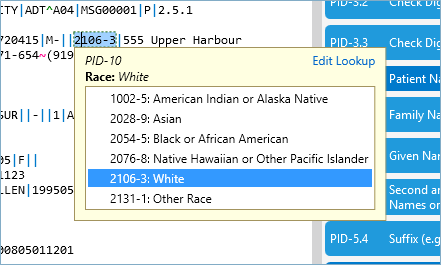
- Check the table values in a message. Open a patient message and compare fields such as PID-10 Race and PID-22 Ethnic Group. In the tutorial, PID-10 has no ITK values, while PID-22 gives a more UK-focused ethnic group list.
- Load the ITK example messages. Open the toolkit examples folder, usually under
...\HL7V2_DMS_V1.1_Final\HL7V2_DMS_V1.1_Final\Examples, search for*.txt, and drag the example HL7 files into HL7 Soup. - Add the imported files into one tag. When HL7 Soup asks whether to add the files into one tag, choose Yes. This makes the example set easier to filter and review together.
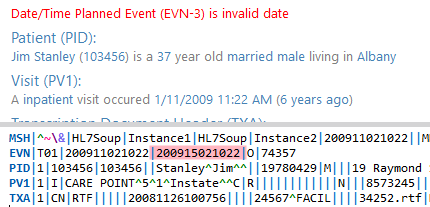
- Fix obvious validation errors first. The tutorial examples include invalid patient birth dates with a thirteenth month. Use the error highlight to create a filter, fix one value, and update the matching filtered messages when the same correction applies.
- Inspect the ITK Z-segments. In an ADT^A04 message, use the HL7 Segments grid and message type drop-down to inspect ITK-specific Z-segments such as ZU1, ZU3, ZU4, ZU6, ZU7, and ZU8.
- Create an ITK validation highlight set. Open Highlights and Validation, create a new set called
ITK NHS, and click Clear All if you want to remove the rules cloned from the previous set. - Generate date validation rules. Click Generate, choose the invalid-date option, and make those messages red and invalid.
- Generate table-value validation rules. Click Generate again and add rules for fields where the data table value is wrong. This makes HL7 Soup check the values against the ITK tables.
- Filter invalid messages and repair the examples. Filter the message list to show only invalid messages. Some toolkit examples may contain values that do not match their own documentation, so work through the filtered list and correct the values you confirm are wrong.
- Export the validation set if your team needs it. Once the rule set is right, export it so colleagues can validate messages against the same ITK checks.
- Optionally replace the default sample messages. After the examples are valid, save them to
%AppData%\HL7Soup\Sample HL7 Message.txtif you want HL7 Soup to open with UK-focused sample messages.
Schema and validation screenshots
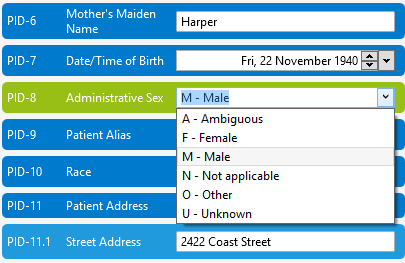
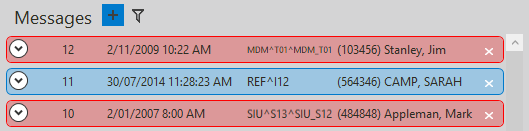
These screenshots show the kind of table lookups and validation feedback the tutorial is working with. Your exact values will depend on the schema pack and message type you have loaded.
Useful checks and troubleshooting
- Schema changes do not appear: confirm the XSD files are in
%AppData%\HL7Soup\CustomSchemas\and restart HL7 Soup. - Expected UK values are missing: check that the message type and field you are reviewing are covered by the ITK schema and table definitions you copied.
- Imported examples are still invalid: do not assume every example file is perfect. The tutorial shows example messages with values that need correction.
- Too many messages to review manually: create a filter for invalid messages, then fix repeated issues across the filtered set.
- Your team needs the same rules: export the
ITK NHShighlight set and share it with other HL7 Soup users on the project.
Related links and downloads
- Download the local HL7V2 DMS V1.1 Final schema ZIP
- NHS England Digital Interoperability Toolkit
- NHS England Digital ITK2 Messaging API standards
- Validate, highlight, and compare messages
- Understanding HL7 message structure
- Return to the tutorial directory
Download 30 Day Free Trial of HL7 Soup
Video Transcript
Read the full transcript
Hello, and welcome to this tutorial, where we look at making our HL7 messages conform to the Interoperability Toolkit, or ITK, used extensively in the UK's NHS.
I'd like to start by explaining why this toolkit is so important when doing HL7 integration work.
HL7's biggest strength, its flexibility, is also its greatest weakness. Inconsistencies between implementations add to the cost, but they can also lead to errors that ultimately put patients at risk.
The ITK seeks to address this by putting in place a more defined standard for your HL7 messages. The great thing for us integrators is that once we have an integration with one ITK site, the next can be done much faster, reducing costs.
I'm going to start by going into HL7 Soup and looking at some of the difficulties you have when working with HL7 in the UK.
HL7 Soup comes with a great list of example messages, but all of these are really focused internationally. They come from different sources around the world.
Further, the drop-downs, although helpful, are often very American-centric. If we look, for instance, at the patient's race, your options are distinctly American. So I'm going to navigate now to the ITK website, and we are going to try and make this somewhat more British.
Firstly, here is the address of the ITK Toolkit: http://systems.hscic.gov.uk/interop/itk.
I've already signed up to this website, so all I have to do now is navigate to ITK Releases, scroll down, and find the NHS Interoperability Toolkit HL7v2. You can click on that, and you need to subscribe to this, but it only takes a few seconds. Then you can download the toolkit to your computer.
Once you have it, it can be extracted out, and you end up with these directories here.
There is all sorts of useful information here, but I am just going to focus on how we can validate your messages. I'm going to start by going into schema, and you will find the full XSD list that defines ITK HL7 messages. I just need to copy those, and I'm going to put them into the HL7 Soup directory %AppData%\HL7Soup\CustomSchemas\.
Now I will just restart HL7 Soup for those changes to take effect.
If I head back to HL7 Soup, we will see it is using the ITK HL7 schemas. That means that if I scroll down to Race, PID-10, we find it empty. That's because it has no values in the ITK standard. But if I continue down to Ethnic Group, PID-22, you'll see we now have a far more British selection of values.
Now I'm going to replace HL7 Soup's example messages with those that come with the ITK Toolkit. I'm going to go back into the toolkit directory and navigate to the examples at ...\HL7V2_DMS_V1.1_Final\HL7V2_DMS_V1.1_Final\Examples.
Search for all the example messages by typing *.txt. Here I get back all the HL7 messages and accompanying scenarios. Now I just drag and drop these into HL7 Soup.
I'm prompted if I would like to add all of these files into one tag, and I'm going to say Yes.
We now have the list of messages that are available in the ITK Toolkit loaded into HL7 Soup.
The first thing you are going to notice is that HL7 Soup is highlighting some errors to us. If I take a closer look, we are told that the patient's birth date is invalid. If I look closer, I can see that the date is in fact invalid, as it specifies a thirteenth month.
To fix this, I'm going to right-click and create a filter where the patient's birth date equals an invalid date.
Now I can see all three invalid messages. I'm just going to fix one of them by making it the twelfth month, then right-clicking and selecting to update all three filtered messages to the same value.
Let's see what else HL7 Soup can provide for us when working in the ITK.
Firstly, if we look at an ADT^A04 message, we will see it has Z-segments. You can see that these are fully described in the HL7 Segments grid. If I click on the Message Type drop-down, we will see the full segment definition available to us, including the Z-segments: ZU1, Additional PV Info; ZU3, Attendance Details; ZU4, Waiting List; ZU6, Labour and Delivery; ZU7, Birth Details; and ZU8, Miscellaneous Demographic Details.
I can just double-click on these to insert the segment into my message.
I can also create validation rules to make sure all my future messages are ITK compliant.
To do this, I navigate to the Highlights and Validation screen, and I will create a new highlight set. I'll call it "ITK NHS", and then I will remove the existing validation that was cloned into my new set by clicking Clear All.
Now I can generate my validation rules off the current message.
I click Generate, and then I can select to highlight red and make invalid any message that has an invalid date. When I click OK, we see that it has generated a list of validation rules for me. Then I will click Generate again, and this time I will select to make all fields with the wrong data table values invalid. This ensures that all values map to those in the ITK tables.
Clicking OK will also add these to my list of rules.
I can even export this set to other colleagues, who can use these rules to make sure their messages are also ITK compliant.
Now if we head back to the messages, we will see what this has done.
I can see that I have some messages that are now invalid. Rather than scrolling through all the messages, I'm just going to create a filter that highlights all the invalid messages. Now I just see the invalid ones, and I see that some of the data table values are not available. I have already checked these against the ITK documentation and found that the example values are actually wrong. So I can now just go through each of these and fix them up until I have a full set of valid messages.
This shows just how difficult working with HL7 can be, that even the providers of the toolkit can still have faults in their examples. HL7 Soup makes light work of this.
Finally, if I save these messages to %AppData%\HL7Soup\Sample HL7 Message.txt, they will replace the standard HL7 Soup messages with the ITK ones. Now HL7 Soup will always load with messages suitable to the UK, and I will have full validation to make sure that I am ITK compliant.
Finally, I would like to add that other countries and organisations have their own schemas defined. You can use this technique to have HL7 Soup define and validate those messages too.