
Processing files with Integration Host best practices
What this tutorial covers
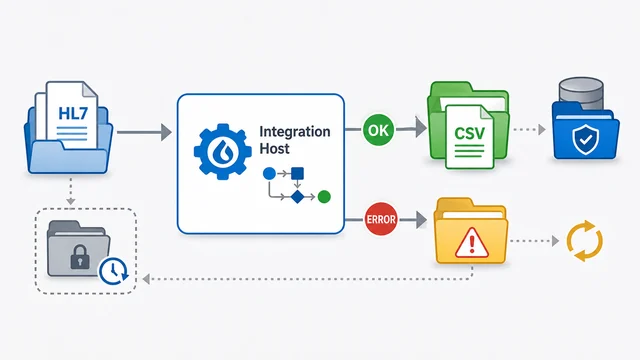
This tutorial walks through the practical settings that matter when Integration Host processes files in a real environment. The example receives HL7 files with a Directory Scanner, decides what to do with processed and failed source files, then writes CSV output with a File Writer.
The existing transcript already contains useful production advice, so this guide keeps that substance and organizes it into the decisions you need to make: how to filter incoming files, when to archive instead of delete, what error action to use, how to avoid overwriting output, and how to keep downstream systems from reading a file before it is complete.
Before you start
- HL7 Soup and Integration Host installed.
- A folder that receives incoming files, such as
C:\temp. - A representative HL7 sample message for building bindings.
- Output, archive, and error folders that Integration Host can read and write.
- A decision about whether downstream systems will pick up the files you write.
Step-by-step guide
- Change the receiving activity to Directory Scanner. You can name the activity yourself, or leave the name blank and let Integration Host name it from the directory path. The automatic name is useful when you want the workflow diagram to show where files are coming from.
- Set the incoming folder and file filter. Point the scanner at the folder that receives files, such as
C:\temp, and filter for the file type you expect. For an HL7 workflow, use an HL7 file filter and set the incoming message type to HL7. - Keep waiting when the workflow should run continuously. Use the continuous option when Integration Host should process files as they arrive. Use the stop-after-current-files option only when you intentionally build up a batch and run it at a chosen time.
- Add a sample message. Insert a representative sample HL7 message so the workflow has a binding structure. This sample is not the file being processed; it is the design-time structure that makes field binding practical.
- Choose what happens to source files after success. Delete only when the sending system has a reliable replay mechanism or the files are low priority. For important files, move the processed source file into an archive folder instead.
- Use message values in archive paths when useful. You can drag values such as patient ID into the archive path so backed-up files are grouped by data from the HL7 message.
- Choose the right error action. Stop the workflow during testing so failures are obvious. Retry until successful for transient failures such as temporary network outages. Move bad files into an error folder when one failed file should not stop the rest of the queue. Delete failed files only for genuinely disposable data.
- Add a File Writer activity for output. When writing CSV, XML, JSON, or HL7 output, decide whether each message should be a separate file or whether records should be batched into larger files.
- Avoid fixed output names unless they are temporary. A fixed name such as
file.csvcan overwrite itself. If you use a fixed temporary name, move the completed file to another folder and let Integration Host make the final name unique. - Prefer
WorkflowInstanceIdfor unique file names. Current date and time is only unique to the second. If multiple files can be written in the same second, useWorkflowInstanceIdor a unique value from the message. - Write to a temporary folder before downstream pickup. If another system watches for completed files, write the file somewhere else first. Move it into the watched folder only after Integration Host has finished writing it.
- Build the CSV body and headers deliberately. Drag the fields you want into the output body and add a comma-separated header line, such as ID, first name, and last name.
- Rename the activity after adding variables. Variable-heavy file names can make the activity label hard to read. Give the activity a clear display name such as
Write to C:\temp\out.


File-handling rules worth keeping
- Do not delete important source files unless they can be replayed. If the sending system keeps its own reliable copy, deleting may be fine. Otherwise, move processed files to an archive.
- Do not let one bad file block the whole queue. In production, moving failed files to an error folder often lets good files continue while you investigate the problem file separately.
- Do not use current date and time as your only uniqueness strategy. It can collide when the workflow writes more than one file per second.
- Do not let another system read a partial file. Write the file in a temporary location, then move it to the watched location after it is complete.
- Choose batching by file type. CSV often works well with many records per file. XML and JSON usually make more sense as one record per file. HL7 can work either way, depending on the receiving system.
Useful checks and troubleshooting
- No files are being picked up: check the scanner folder, file filter, message type, and whether Integration Host has permission to read the folder.
- Output files overwrite each other: add
WorkflowInstanceIdor a unique message value to the output file name, or move completed files to another folder so Integration Host can make the final name unique. - A downstream system reads an incomplete file: write to a temp folder first and move the completed file into the folder watched by the downstream system.
- One bad file stops all processing: use the Directory Scanner error action to move failed files into an error folder instead of stopping the workflow.
- Retry keeps failing forever: retry is useful for transient errors, but not for invalid file names, bad paths, or data problems that cannot succeed without intervention.
- CSV files are too small or too large: adjust the max records per file to match how the receiving system wants to consume batches.
Related tutorials
- Integration Host Getting Started Part One
- Integration Host Getting Started Part Two
- Mastering the Workflow Designer
- Add repeating HL7 values to CSV
- Return to the HL7 tutorial directory
Download 30 Day Free Trial of HL7 Soup
Video Transcript
Read the full transcript
Welcome to this tutorial where I hope to go over some of the best practices for processing files with Integration Host.
To start with, I'm going to change the receiving activity type to be a Directory Scanner. It's going to prompt me for a name. I'm not going to use a name, and there's a good reason for that. If I type in the directory, you'll notice that the name is automatically picked up and created using the directory I've typed in. This can be helpful when I'm viewing the workflow, because I can automatically see what this activity is doing and where it's getting the files. For some people, it might be more practical to give it a proper name.
The next setting is the file filter. This is the type of file we're going to pick up. I'm going to have this pick up from the C:\temp directory, every HL7 file in that directory. If I was using XML or something else, it's just a matter of changing that file name to XML. It does support multiple file types, but that's mostly not practical for our purposes.
I'm just going to change that back to HL7, and we'll pick up all HL7 files from the temp directory. We've got the choice to keep waiting for more files to be added to that directory and process them as they come in, or to stop running once all the files are processed. That second option allows you to build up files and then start the workflow again at whatever time suits you. I generally prefer just to keep processing in real time, so that's what I'll do. I'll leave it on keep waiting for more files to be added.
I'll set the message type too. Again, I'm bringing in an HL7 message, so the message type will be HL7, but you would change that appropriately. I'm going to put in a sample message for the HL7. This is just to give the system something that I can use for bindings and structure. It's not the message being processed, but it does make it much simpler to create my workflow.
Now we come to the post-processing section. Do we want to delete this file after we're finished processing? You will probably do that if you have another system that's sending the files here but also storing a replication of each file, or if that system has logs you can go back to and resend from. It could also be a low-priority file where it doesn't really matter if it gets through or not. But if it is a high-priority file and you can't replicate it from the other system, then obviously you're not going to want to delete it.
You'll probably want to move it to another directory after processing instead. I can click that and put in a path for it to go to, such as C:\tempback. After it's finished processing, it's going to put that file into this directory, which means you can group files into a particular directory.
I'm going to take the patient's ID number and drag that in to create a directory. It will create a directory that uses part of the data from the message in the directory name. This can help sort backed-up data for you.
Then we've got the error action. The Directory Scanner is a little bit different from the other activity types. The other ones tend to have one system pumping data into your workflow. If something goes wrong, it's really for the other system to send you that data again. In the file system, that's just not possible. If an error happens, how do you tell the file system to reprocess that message? You can't, so what we've got for Directory Scanners is an error action that, by default, will stop the workflow and allow you to come and look at it. That's probably not great for production, but it's great for testing, because you can see it stop and go back to have a look at what happened.
It can retry until successful. That's good for connections across a network. If the network goes down, you're going to want to retry until it can get that message through, particularly in mission-critical systems. Do be aware, though, that it is going to retry. It will keep processing over and over again if an error goes wrong. If that's the type of error that cannot be resolved, such as writing to an invalid file name, no matter how many times it retries, it's going to get the same error. Often you would only put it on retry until successful in a live production system where you've thoroughly tested your workflow and made sure it's going to work correctly in all scenarios. You can still go into Integration Host and stop the workflow if things are going wrong, so it's worth keeping that in mind.
Move the file to a directory is a great option. Sometimes data could be funny, so you can have a directory as a sort of retry directory. That allows you to say, "If this file fails, we're going to shift this file into this other directory." Then you can monitor that directory yourself, maybe even with a different process, and re-handle it. Maybe send an email if things are happening wrong. That's up to you. What it does allow is for the rest of the messages to continue being processed. If you've got a system where one bad message stops the whole thing from processing, but all those other messages should be processed, you're going to want to turn this into move file to a directory. It takes the error or the problem, puts it aside, and allows everything else to keep going.
Finally, there's delete file. That makes sense for some systems, perhaps temporary data that is not critical at all. Once the file errors, it shifts it out of the way, deletes it, and continues processing the rest of the files.
I'm going to set that to move to a directory, and then I can place in another one. I'll put in C:\temperror. So that is your Directory Scanner. Let's have a look at what happens when we now write out that file again.
I'm going to add another activity and set this to a File Writer. Again, the same thing applies. If I don't give it a name, it will use the path that I type in to generate the name. In this case, we're not providing it with a directory; we're providing it with a full file name. I'm going to call it file.csv. That's great. It's going to write out, and it's going to call it C:\tempOut\file.csv. There's a problem with that: it's always going to be called file.csv. Let me discuss a few of the ways around fixing this problem so you're not still writing the same file name every time.
We are writing a CSV, so I'm just going to change that across to CSV. CSVs support multiple records per file. In this case, the max records per file is set to 5000. It's going to write 5000 lines of data into that file before it moves on. After 5000, it would then move the file to another directory.
If you don't move it to another directory and you've set it to a fixed file name like this, it's going to end up just overwriting itself every 5000 records. You don't want to configure it that way, so you want to make sure that you move it to another directory after processing. I'll call this one C:\temp\out.
There's my directory that I'm going to be writing it to. The great thing about that is when it does move the file to the processing directory, it's going to make sure the file name is unique automatically. It didn't matter that I've given it a fixed file name. You could always consider this to be a temporary file, and then when it moves it into C:\temp, it's going to append some characters on the end. It will guarantee that the file name is unique, but it will change it.
There was another way I could have made sure the file name was always created uniquely. I could use a value from the workflow. The first thing would be, perhaps I could use the time. Let's have a look at that. I could change the file name, right-click in the right place, say Insert Variable, and then choose the current date and time.
That's now going to put the current date and time into the file. It will write C:\temp\file, then the date and time in HL7-style year, month, day, down to the second, and then .csv. That's great. Now I've got a unique file name, but of course that's only valid every second. If you write multiple files per second, then it's no longer unique.
I don't recommend using the current date and time for uniqueness. Instead, what I'd like you to use if you want to make it unique is Insert Variable, then use the WorkflowInstanceId. The WorkflowInstanceId is just an ID that increments with each iteration of your workflow, so that will guarantee that you have a unique file name.
You're not stuck with just those values. You are welcome to also take values out of your incoming message. I can go down to the patient's name, and maybe the family name, for instance. I'll just drop that in there, and now it will also have the family name appended. That could be helpful if you want to make the files more identifiable.
Incidentally, now that we've got it like that, when it moves it to the output directory it's already going to be unique, so you're not going to end up with a newly generated file name unless there was some conflict from a previously run system. All that makes good sense for CSV, but if it was an XML file or JSON file, you aren't going to be wanting to write multiple records per file. It tends to make sense just to write it as one record per file, and that way you'll end up with a newly generated file each time. That applies mostly to XML and JSON files. With HL7 it's up to you. Sometimes people prefer them as single records per file, and sometimes they prefer to have maybe a day's list of files, and it's all supported. The HL7 format handles either one. It doesn't matter. But CSV wants a big number in there.
One more thing I wanted to point out with moving the file to another directory after processing: I think this is an excellent practice if you've got another system that's going to pick up and process your file afterwards. The reason is that you can create your file in a temp directory. It can be built up, and only once it's completed is it moved into another directory. The other system can then process it in its completed state.
If you don't use that mechanism, particularly when you're writing out 5000 records into the file, it can take a long time for that file to be built up. You don't want your other system to detect that file, grab it, and start processing it too early. You're going to end up losing records. Always make sure, if it is being processed by another system, that you set this to move into another directory when you finish processing. If you're just archiving the data, it doesn't matter. You don't need to do it that way. You could write it straight into the correct directory.
Now we've got to build up the data that we're writing out. By default, it was bound to the incoming message because we are changing the types. I will delete that, and now I just need to build up my CSV. I can provide it with the headers, or I can just drag in the fields I want. I'll drag in the patient's ID and the family name. Notice it's putting out the commas for me, which makes my life a bit easier.
Now we've got a very simple CSV, and I probably want to give it some headers too. I've got an ID, first name, and last name, and I'm just typing these out the way I'd like them to appear in the file. The header line is just a comma-separated list of header names.
I'm going to head back up to the top now. You'll notice that the name is looking pretty ugly because it has variables in it, so I might just want to change that to Write to C:\temp\out. That gives it a better indication of what this activity is doing. The variable names obviously can't be replaced into the name of the activity, so in that case it's probably better to type them in.
Hopefully this goes some way to help you use HL7 Soup Integration Host to read in files, process them, convert them out, and avoid some of the pitfalls that you can encounter when dealing with files: making sure you're not overwriting the name of the file, making sure you give it a unique file name, and making sure other processing systems don't interfere.
As usual, if we've helped you, please give us a like and maybe even consider subscribing. I'd love to hear your comments and any thoughts about what you'd like from us in the future.