
PDF, Binary, and RTF in HL7 Messages
What this tutorial shows
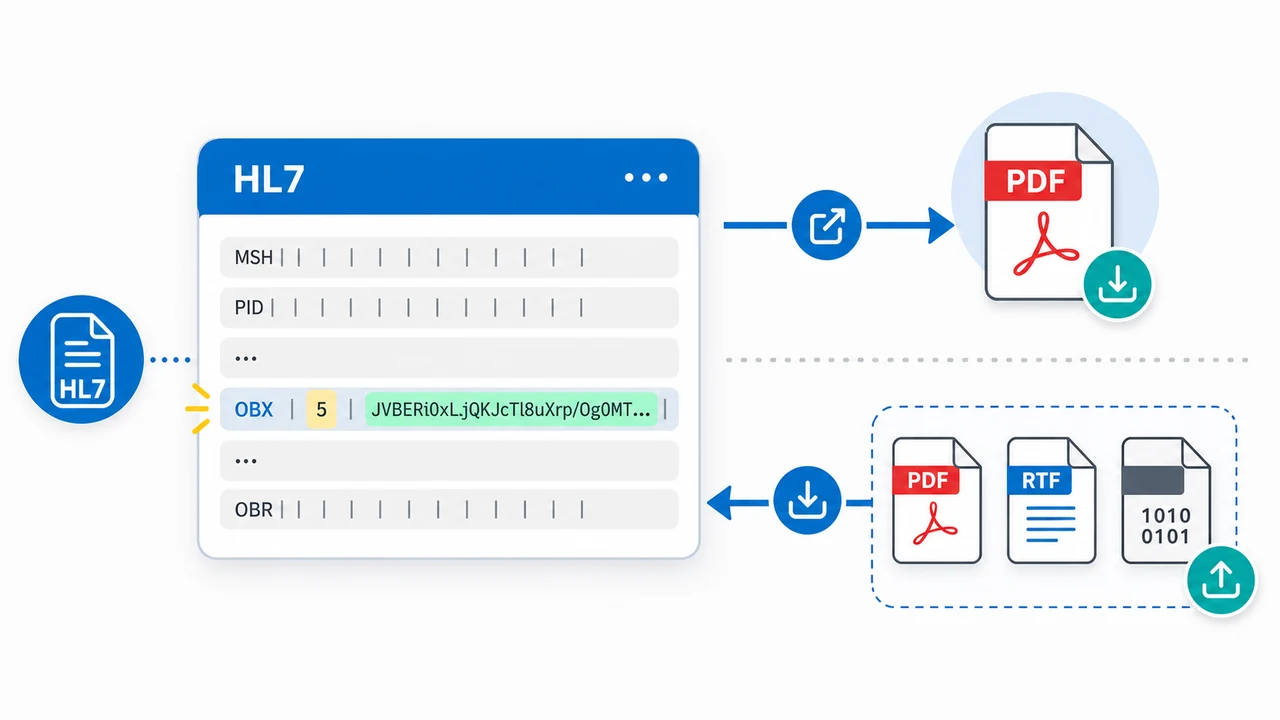
HL7 messages are text, but real interfaces often need to carry documents such as PDFs, RTF letters, scanned forms, or other binary files. The usual pattern is to Base64 encode the file content and place it into an OBX value, then decode it again when it needs to be written back to disk.
This tutorial walks through three practical Integration Host workflows: extracting a PDF from an incoming HL7 message, appending a PDF into a new OBX segment, and creating an HL7 file every time a PDF is dropped into a directory.
Before you start
- HL7 Soup installed so you can inspect, send, and receive test HL7 messages.
- Integration Host installed for the receiving, file writing, code, transformer, and directory scanner workflows.
- An ORU R01 or similar message with a Base64 document value in OBX-5.
- A local working folder such as
C:\PDF\output. - A PDF or RTF file to embed when testing the append workflow.
- Available local test ports. The tutorial uses ports
22222and22223.
How binary content fits into HL7
A PDF cannot be placed into an HL7 message as raw bytes. It has to be encoded into text first. Base64 is the common representation, and in this tutorial the encoded document is placed in OBX-5.
HL7 Soup can help you verify the content. Right-click the document value and choose View Document. If the Base64 is intact and the log has not truncated the message, the PDF opens directly from the HL7 message.
When Integration Host writes a Base64 document to disk, choose Binary as the message type. Treating the value as ordinary text is a common way to create a corrupt output file.
Extract a PDF from HL7 OBX-5
- Create a receiving workflow. In Integration Host, create a workflow that receives HL7 over TCP and listens on port
22222. - Insert a sample message. In the Message Template box, right-click and insert an
ORU^R01sample message so the OBX segment is available in the bindings tree. - Add a File Writer activity. Add a new activity and select File Writer as the activity type.
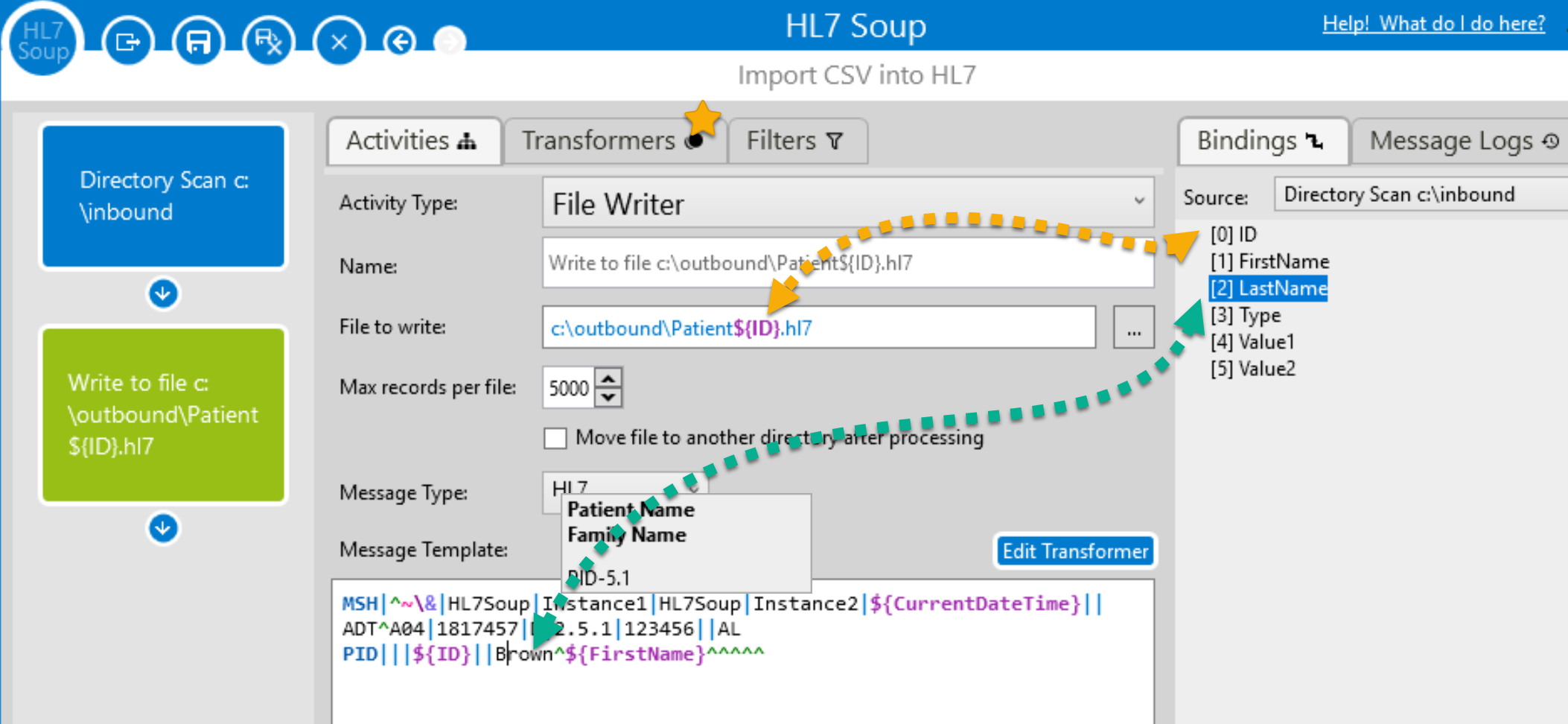
- Create a unique output file name. In File to Write, use a path such as
C:\PDF\output\myPDF.pdf. DragMSH-10, the message control ID, into the file name so each output is unique. - Set the activity message type to Binary. This tells Integration Host to decode the Base64 text back into binary bytes when writing the file.
- Bind the document value. Delete the default binding, then drag
OBX-5 Observation Valueinto the File Writer message template. - Send the test message. In HL7 Soup, configure a send to port
22222and send the message. - Check the log and output folder. Refresh the Integration Host logs and confirm the PDF was created in the output directory.
MSH-10 and OBX-5 into the File Writer.Append a PDF to an incoming HL7 message
The next scenario starts with an incoming HL7 message and adds a PDF to it before sending the message on. In the tutorial, the PDF is read from disk, Base64 encoded, then appended as a new OBX value.
- Create a second receiving workflow. Listen on another port, such as
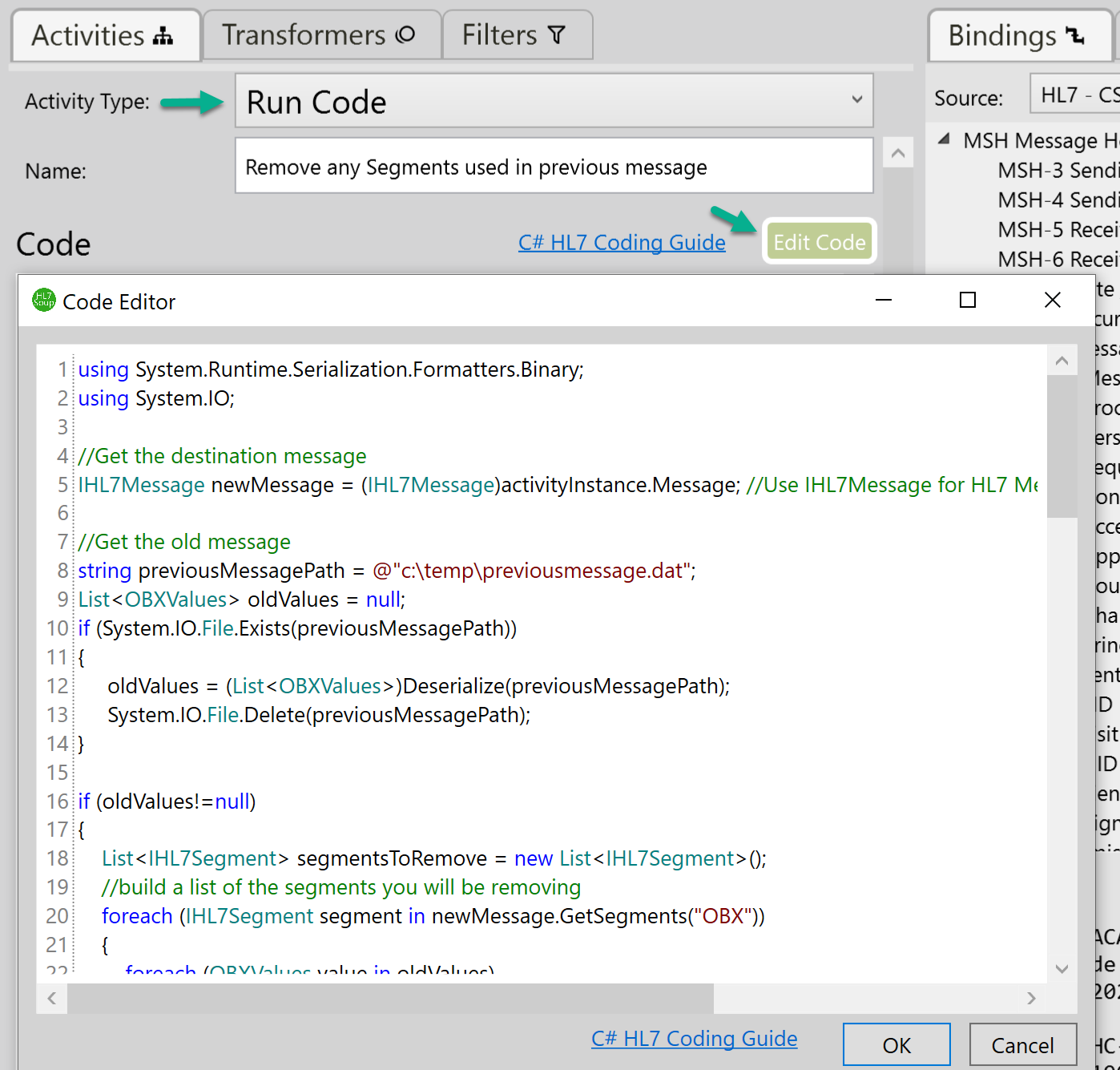
22223. - Add a Run Code activity. Delete the sample code and set the Run Code activity message type to Binary.
- Read and encode the file. Use code like this to read the PDF and store its Base64 value in the activity message.
string filename = @"c:\PDF\January.pdf";
var bytes = System.IO.File.ReadAllBytes(filename);
activityInstance.Message.SetValueAtPath("", Convert.ToBase64String(bytes, Base64FormattingOptions.None));- Append a new OBX segment. Add an Append Segment transformer and start the source path with
OBX|||||. - Insert the encoded PDF. Right-click in the source path, choose Insert Activity Message, and select the Run Code activity message.
- Send the message onward. Send the altered HL7 message to the workflow that is listening on port
22222. - View the received document. Open the received message in HL7 Soup and use View Document to confirm the appended PDF can be opened.
Use a Code Transformer instead
The video also shows a second method. Instead of sending the PDF as a Run Code activity message, use a Code Transformer to set a workflow variable, such as PDF, to the Base64 value. Then insert that variable into the Append Segment source path.
This keeps the same basic idea: read the file bytes, convert the bytes to Base64 with Base64FormattingOptions.None, then place that value into the HL7 message where the receiving system expects the document.
Create HL7 when PDFs arrive in a folder
The third workflow reverses the problem. Instead of receiving HL7 and extracting a PDF, Integration Host watches a folder for PDF files and creates HL7 files that include the PDF content.
- Create a Directory Scanner workflow. Set the activity type to Directory Scanner and point it at the folder where PDFs are dropped.
- Filter for PDFs. Use a file filter such as
PDFor*.pdf, depending on how you prefer to express the filter. - Set inbound message type to Binary. There is no message template needed for a binary file input.
- Add a File Writer activity. Write the output to a path such as
C:\PDF\output\$(DirectoryScannerFileName).HL7. - Build the HL7 template. Start from a sample HL7 template, then populate patient, order, or report values from whatever source your real workflow uses.
- Insert the incoming PDF content. In the OBX value, right-click and insert the activity message from the Directory Scanner.
- Save, run, and inspect the output. The workflow creates HL7 files with embedded PDFs, which can be opened in HL7 Soup and checked with View Document.
Useful checks and troubleshooting
- View Document says the document was truncated: increase the Integration Host maximum megabytes allowed per message log, resend the message, and test again.
- The output PDF is corrupt: make sure the File Writer or inbound file activity uses the Binary message type, not a text message type.
- The Base64 has line breaks: use
Base64FormattingOptions.Nonewhen encoding from code so the OBX value stays predictable. - Files overwrite each other: include
MSH-10,$(DirectoryScannerFileName), or another unique value in the file name. - Your message uses a different document field: confirm where your interface places the encoded document. OBX-5 is common, but real interfaces may vary.
- RTF behaves the same way: treat the RTF as binary content when embedding or extracting it, then write it with the correct file extension for the downstream system.
Related tutorials
- Integration Host Getting Started
- Integration Host Getting Started Part 2
- Mastering the Workflow Designer
- Processing Files Best Practices
- RTF to PDF Extension Library
- Return to the HL7 tutorial directory
Download 30 Day Free Trial of HL7 Soup
Video Transcript
Read the full transcript
Welcome to this tutorial, where we look at PDF and binary inside HL7 messages. In front of us I have a PDF and an HL7 message with an embedded PDF inside it. It is Base64 encoded, as binary documents always are inside HL7 messages.
There is a useful trick to verify this inside HL7 Soup. If you right-click the message and select View Document, HL7 Soup loads the PDF so you can view the contents of that embedded document.
In this tutorial, we will look at several things you can do with PDFs and other binary files inside HL7.
To start, we will look at the message we have and extract the PDF into the file system. To do that, we will create a new workflow in Integration Host and set it to listen on port 22222.
Next, in the Message Template box, right-click and select Insert Sample Message. In this example, I select an ORU R01 observation message because it often has an OBX segment inside it. The message will come in, and now we need to write out the file.
To do that, add another activity. In this case, select File Writer as the activity type.
In the File to Write section, enter c:\pdf\output\myPDF.pdf, then drag MSH-10 Message Control ID from the bindings into the file name between PDF and .pdf. That gives each file a unique name. Because we want to write out just the OBX value, select Binary from the Message Type dropdown. This handles the fact that the value is Base64 encoded; when it is written to disk, it needs to become a binary file again.
Then delete the default binding, select OBX-5 Observation Value from the bindings, and drag it into the Message Template box. That grabs the OBX value. The next step is to try it out. Start the workflow, then send the message to port 22222 using the sending settings at the bottom of HL7 Soup.
The message comes through. If we refresh the logs, we can see that it wrote out the file with the data. It created the output directory for us, and the PDF is there.
Now let's say that every time an HL7 message comes through, we need to append a PDF to it.
First, create a new workflow and listen on another port. In this example, that is port 22223. The message comes in, and we want to append a PDF, so we add another step by running code. Select Run Code as the activity type, delete the sample code in the Code dialog, and select Binary from the Message Type dropdown. Now we need to give it some code, and we can use the code editor to do this. To make the video faster, I paste in some code I already have.
string filename = @"c:\PDF\January.pdf";
var bytes = System.IO.File.ReadAllBytes(filename);
activityInstance.Message.SetValueAtPath("", Convert.ToBase64String(bytes, Base64FormattingOptions.None));
Now that the Run Code activity is writing out the PDF content, that content becomes the output of the activity, and we need to get it into the incoming HL7 message. It will be sent after we finish to the other connection we previously created, which was listening on port 22222.
We now have our HL7 message. It is already bound to the incoming message by default, and we need to append a new line. I am going to do that with Transformers and add an Append Segment transformer. This is just one of the many ways we might add it, but it seems logical while tracking an OBX. In the Source Path dialog, enter OBX|||||, then right-click, choose Insert Activity Message, and select the Run Code sender message.
Try it out and look at the logs. The workflow picked it up, ran the code, and added it into the HL7 message. It should then be received with the PDF inside it. If we view it inside the HL7 Soup editor, it gives us another view and shows the logs inside it, which is very useful.
Here is a tip. If we try to view the document and get an error saying the document was truncated, that is because the system has a log size limit to stop logs from getting too big. If we try to open it anyway, it will show another error. To fix that, go into Integration Host settings and increase the maximum number of megabytes allowed per message log. If we resend the message, go to integrations, and refresh the list, we can see it has come through without being truncated. It is up to you to set the maximum megabytes allowed per message.
That was one way to do it. Now we will look at another.
The previous method used the Run Code activity. In the second method, we add a Code Transformer and select Edit Code.
We use the same code from the previous method, except we are no longer sending an activity message. Instead, the code sets a workflow variable named PDF. That means we read the PDF, put it into a byte array, Base64 encode it, and add it to the variable called PDF. Then, in the Source Path box, delete the Run Code sent message and use Insert Variable to insert the PDF variable.
To try this one out, go back to HL7 Soup, click Send, then go to integrations and refresh. The new message is created, and the PDF has been added. If we double-click it, it should view nicely. That is the second method of adding in the PDF.
Now that we have covered two different methods, let's look at another scenario. Say PDFs are being created, and we want to create an HL7 message every time a PDF is dropped into a directory. We have an output directory; every time a PDF is put into that directory, we can pick it up and put it into an HL7 message.
To do this, create a new workflow, set the activity type to Directory Scanner, and copy the output directory path into the Directory text box.
In the File Filter section, enter PDF so it searches that directory for incoming PDF files. In the Inbound Message section, select Binary from the Message Type dropdown. There is no message template required for binary.
Add another step to pick that up and write it out to a file with HL7. I will put it in the same directory because we are only picking up PDFs. In the File to Write section, enter C:\PDF\output\$(DirectoryScannerFileName).HL7. This writes it out as an HL7 file.
The next step is to build the HL7 file. In the Message Template, select a sample template. It is prepopulated with dates and the workflow instance ID, but it does not relate to the patient or other variables. In most real cases, there would probably be another step here, such as a Database Query or HTTP Sender, to get the data needed to populate the HL7 message.
Once that data is populated, add the incoming PDF into the OBX. Choose Insert Activity Message, then select the Directory Scan activity.
The next step is to select Save and Close. It has already created three HL7 messages, and the PDFs are embedded.
If you right-click and select View Document, it has picked it up and processed it.
These are the different techniques for handling PDFs or any binary file.
If you have any questions, please get in touch with HL7 Soup support. It would be doing me a huge favor if you like and subscribe to the channel. You are welcome to interact and leave a comment on YouTube, and do not forget to download the Integration Host or HL7 Soup trials to make sure it is the right solution for you.